Data Engineering Zoom Camp Week 2 – Data Orchestration With Kestra

I recently learned to use a powerful data orchestration tool called Kestra that’s transforming how I approach modern data workflows. As part of the Week 2 of Data Engineering Zoom Camp with Data Talks Club, I learned how to use Kestra and its capabilities to build robust data pipelines.
I love finding new ways to work more efficiently and what excites me most about Kestra its ability to handle a variety dependencies and programming languages while still remaining intuitive. As always, I’ll focus on what these experiences taught me from a practical perspective—meaning you can expect real-world takeaways rather than deep technical dives.
If you’re seeking to improve your data pipelines or explore modern workflow management solutions, read on to discover my key takeaways.
What is Kestra?
Kestra is an orchestration tool that automates the execution of multiple tasks or jobs within a workflow. It functions similarly to a conductor leading an orchestra that ensures each instrument (task) plays in harmony according to the sheet music (a set of defined rules), resulting in a cohesive performance (workflow). Although other tools offer similar functionalities, such as Airflow, Kestra stands out for its flexibility in allowing users to set up code, low-code, or no-code environments while remaining code agnostic. This flexibility allows developers to use their preferred languages without restriction, selecting the optimal tool for each task within the Kestra environment.
Kestra Concepts
Kestra uses a YAML configuration approach for defining flows that might seem intimidating at first but offers great power once you get the hang of it. Let me break down some key components:
Building Blocks of Kestra Workflows
Kestra organizes data processes into flows, which are like pipelines composed of modular tasks. Think of it like building with LEGOs—each task performs a specific function (extracting data, transforming it, loading it) and connects seamlessly to others.
For instance, imagine a flow that downloads daily stock prices, calculates moving averages, and then sends an email alert if there’s a significant change. Each step would be a separate task within the same flow.
Task Referencing & Re-usability
Kestra allows you to reference tasks across flows using unique IDs—this enables powerful dependency management. If multiple flows need to use the same data source or transformation, you can define it once and reuse it everywhere.
For example, if you have a task that extracts customer data from an API, other flows could reference this task instead of duplicating the code.
Dynamic Inputs & Parameters
Workflows often need to handle different inputs—like processing files for various years or regions. Kestra allows you to define inputs that users can configure when starting a flow. These inputs are then available within tasks as variables.
For example, a data ingestion flow might have an input called “source_system” which could be set to “Salesforce,” “Google Analytics,” or “Facebook Ads” depending on what needs to be processed.
Variables for Code Re-usability
Beyond inputs, Kestra supports variables that can store values used across multiple tasks within a flow. This promotes code reusability and makes workflows easier to maintain.
Imagine a task that extracts data from an API—instead of hardcoding the URL, you could define it as a variable and use that throughout your workflow.
Task Outputs & Data Lineage
Kestra tracks how data moves through pipelines by allowing tasks to define outputs that can be used by subsequent tasks or even other flows. This creates clear data lineage and makes debugging easier.
For example, after extracting data from a source, the task could output the number of records processed—this would provide valuable monitoring information without requiring complex logging setups.
Automation & Scheduling
Workflows can be automated using triggers that run them on a schedule or in response to external events. This is essential for building reliable data pipelines that operate without manual intervention.
For instance, you could set up a flow to automatically download and process daily sales reports at 6:00 AM every morning.
Concurrency Management
When workflows become complex, Kestra allows you to manage how many instances can run concurrently—preventing resource bottlenecks and ensuring stability. This is particularly useful for data pipelines that access shared resources like databases or APIs with limited capacity.
These features combined make Kestra a flexible yet powerful platform for orchestrating modern data workflows - from simple ETL processes to complex analytical pipelines.
Installing Kestra
Before setting up Kestra, certain steps had to be taken. Given that Kestra uses Docker and Docker Compose, ensuring these components are installed will streamline the setup process. If you want step by step on how to set up and run Kestra, check out the data engineering zoom camp Github repo here. To set up Kestra, here’s what I needed to have beforehand:
Docker Engine installed
Docker compose plugin installed (to run docker compose commands)
Have access to VS Codium or another preferred Integrated Development Environment (IDE)
Have access to terminal (either within your IDE or another terminal app)
In my selected project folder, I copied the following docker compose yaml configurations from the data engineering zoom camp Github repo: kestra docker compose file. This file configures, Kestra, Postgres18 databases, and PgAdmin services to run all at once.
Next, I ran the following command in the terminal to start the docker containers: docker compose up -d. All services should now be running and the Kestra UI is accessible via web browser at localhost:8085.
Getting Started With Kestra
Logging into the UI you are faced with a nice interface similar to below:
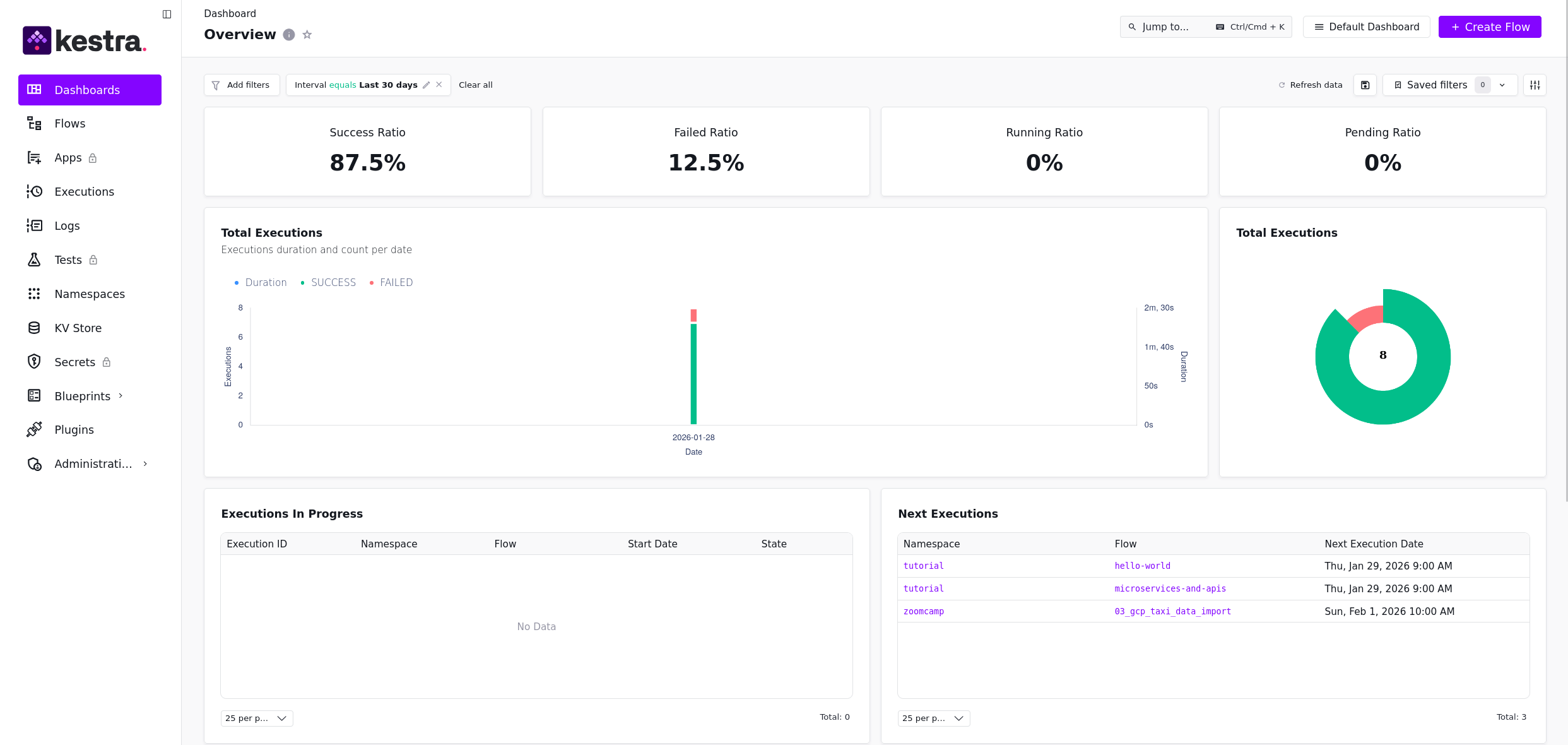
Figure 1. Kestra UI Dashboard View
Within the sidebar, you’ll find options like flows, executions, and logs. We’ll focus on “flows” today.
In the flows section, I’ll walk through a project example from my data engineering course. This project involves creating custom flows to extract CSV files from online web addresses and transfer them into a Google Cloud Storage (GCS) bucket.
To do this, you’ll need A Google Cloud Platform (GCP) account or alternatively, Microsoft Azure or an Amazon Web Services account.
I won’t cover setting up GCP or other cloud services in detail, but if you want to follow along, there are instructions in the data engineering zoom camp GitHub repo here.
Once GCP is set up, I was able to use the following Kestra yaml template to setup the required variables I need to create a Google Cloud Storage bucket:
id: 01_gcp_kv
namespace: examplepipeline

tasks:
  - id: gcp_project_id
    type: io.kestra.plugin.core.kv.Set
    key: GCP_PROJECT_ID
    kvType: STRING
    value: kestra-sandbox # TODO replace with your google cloud project id

  - id: gcp_location
    type: io.kestra.plugin.core.kv.Set
    key: GCP_LOCATION
    kvType: STRING
    value: europe-west2 # TODO define the location you want to set for your gcp services

  - id: gcp_bucket_name
    type: io.kestra.plugin.core.kv.Set
    key: GCP_BUCKET_NAME
    kvType: STRING
    value: your-name-kestra # TODO make sure it's globally unique!
This YAML file defines a flow in Kestra, which is like a recipe for processing data. It sets up three key-value pairs:
GCP_PROJECT_ID stores the Project ID of your Google Cloud Project.
GCP_LOCATION sets the location for your services in Google Cloud to Europe-West2.
GCP_BUCKET_NAME creates a globally unique bucket in Google Cloud Storage.
These values are stored in Kestra’s data store using the “io.kestra.plugin.core.kv.Set” type, making them accessible later in other tasks or flows. Additionally, these key-value pairs play an integral role in our forthcoming flow mentioned below:
id: 02_gcp_setup
namespace: examplepipeline

tasks:
  - id: create_gcs_bucket
    type: io.kestra.plugin.gcp.gcs.CreateBucket
    ifExists: SKIP
    storageClass: REGIONAL
    name: "{{kv('GCP_BUCKET_NAME')}}" # make sure it's globally unique!

  - id: create_bq_dataset
    type: io.kestra.plugin.gcp.bigquery.CreateDataset
    name: "{{kv('GCP_DATASET')}}"
    ifExists: SKIP

pluginDefaults:
  - type: io.kestra.plugin.gcp
    values:
      serviceAccount: "{{secret('GCP_CREDS')}}"
      projectId: "{{kv('GCP_PROJECT_ID')}}"
      location: "{{kv('GCP_LOCATION')}}"
      bucket: "{{kv('GCP_BUCKET_NAME')}}"
This process sets up two important components for your Google Cloud project:
A storage bucket in Google Cloud Storage
A dataset in Google BigQuery
To access configuration values, we use a special syntax like this: `{{ kv(key-name) }}`. When the flow runs, this will replace the actual value associated with that key (for example, `{{ kv(GCP_LOCATION) }}` would become `europe-west2` based on our previous setup).
In Kestra, “secrets” (base64 encoded environment variables) can be used instead of directly exposing sensitive information like passwords or API keys. Using secrets helps keep this information masked and secure, preventing it from appearing in plain text or logs. For more details on managing secrets in Kestra, check the documentation here.
Last but not least, let’s run our final flow that will download taxi data csv files from our web address and transfer them into our Google Storage bucket we created earlier:
id: 03_gcp_taxi_data_import
namespace: examplepipeline
description: |
Best to add a label `backfill:true` from the UI to track executions created via a backfill.
CSV data used here comes from: https://github.com/DataTalksClub/nyc-tlc-data/releases

inputs:
- id: taxi
type: SELECT
displayName: Select taxi type
values: [yellow, green]
defaults: green

variables:
file: “{{inputs.taxi}}_tripdata_{{trigger.date | date(’yyyy-MM’)}}.csv”
gcs_file: “gs://{{kv(’GCP_BUCKET_NAME’)}}/{{vars.file}}”
table: “{{kv(’GCP_DATASET’)}}.{{inputs.taxi}}_tripdata_{{trigger.date | date(’yyyy_MM’)}}”
data: “{{outputs.extract.outputFiles[inputs.taxi ~ ‘_tripdata_’ ~ (trigger.date | date(’yyyy-MM’)) ~ ‘.csv’]}}”

tasks:
- id: set_label
type: io.kestra.plugin.core.execution.Labels
labels:
file: “{{render(vars.file)}}”
taxi: “{{inputs.taxi}}”

- id: extract
type: io.kestra.plugin.scripts.shell.Commands
outputFiles:
- “*.csv”

taskRunner:
type: io.kestra.plugin.core.runner.Process
commands:
- wget -qO- https://github.com/DataTalksClub/nyc-tlc-data/releases/download/{{inputs.taxi}}/{{render(vars.file)}}.gz | gunzip > {{render(vars.file)}}

- id: upload_to_gcs
type: io.kestra.plugin.gcp.gcs.Upload
from: “{{render(vars.data)}}”
to: “{{render(vars.gcs_file)}}”

- id: purge_files
type: io.kestra.plugin.core.storage.PurgeCurrentExecutionFiles
description: To avoid cluttering your storage, we will remove the downloaded files

pluginDefaults:
- type: io.kestra.plugin.gcp
values:
serviceAccount: “{{secret(’GCP_SERVICE_ACCOUNT’)}}”
projectId: “{{kv(’GCP_PROJECT_ID’)}}”
location: “{{kv(’GCP_LOCATION’)}}”
bucket: “{{kv(’GCP_BUCKET_NAME’)}}”

triggers:
- id: yellow_schedule
type: io.kestra.plugin.core.trigger.Schedule
cron: “0 10 1 * *”
inputs:
taxi: yellow
This workflow is designed for handling monthly taxi data imports. Let me walk you through its structure:
First, we define the flow with an optional description explaining its purpose. Next, we specify the inputs required to download the necessary taxi data. We then list variables that will be used to process and output this data (particularly if it’s in CSV format). The workflow includes three main tasks:
Extracting the downloaded files
Uploading them to a designated Google Cloud Storage bucket
Purging the local download within Kestra
Finally, we configured default values for our GCP plugin to ensure proper access and operation, and set up an optional trigger to run automatically at 10:00 AM on the first day of each month.
And there you have it, a data pipeline that automates extracting and transferring files to a defined storage location. From there, you can create data tables within our defined BigQuery dataset using the files stored in our Google Storage bucket within GCP.
Wrapping Up With Kestra
This module really drove home how different it is to follow a tutorial versus actually building something yourself. When you’re doing your own project and things break in unexpected ways... that’s where the real learning happens! I definitely felt that with Kestra this week—there were moments of pure frustration mixed with these “aha!” insights.
For my final assignment, I had to extract csv files from 2024, create an orchestration flow to load them into a cloud storage bucket and create BigQuery datasets and tables using the stored files. It seemed straightforward at first, but then... the fun began. You can review my orchestrated pipeline files by visiting my Github repo here.
Challenges & Triumphs
I always find it helpful when people share their struggles alongside their successes—so I’ll be honest about what tripped me up:
First issue was running a python data orchestrated flow in Kestra. The flow was designed install necessary python depencecies and run a python script automatically. Yet, I continued getting a java.net.ConnectException that took some time to debug. Turns out, because I’m running Docker as non-root, I needed to update my configuration file to point to the correct docker socket.
Then came the log spam—like a million info messages in 15 minutes! My desktop froze up at one point (*panic noises*). The fix ended up being deleting all my Docker volumes and starting over, which felt dramatic but ultimately worked. Any guesses what caused that? I suspect it had something to do with how I was referencing the data source URL.
I realized I didn’t save the downloaded csv file data to a output component within my yaml file so the data could be passed along to the next task—spent a good 30 minutes debugging that one! However, thanks to this issue, gained a better understanding of how outputs work in Kestra.
But hey, overcoming those challenges felt really rewarding. It’s like when you finally figure out a tricky puzzle? That sense of accomplishment is worth all the frustration.
What Really Struck Me
Beyond just getting through the assignments, I learned some key things:
The power of automation vs orchestration—seeing how Kestra lets you combine multiple automated steps into complex workflows
How to manage secrets securely (base64 encoding passwords and sensitive files)
The importance of documentation and community support when you get stuck.
What’s been your experience with learning new data engineering tools? Do you find yourself hitting similar challenges?
I’m excited to continue exploring Kestra—especially how it integrates with Git and Terraform for automating infrastructure setup. I can see that being super powerful down the road!
If wanting to do more a deep dive into using Kestra, feel free to review their website.
Shout out to Will with Kestra for provide such clear and informative tutorials! Thanks again to the Data Talks Club for creating such a welcoming space to learn. If you’re looking to expand your data engineering skills, definitely check them out!
Until next time!